
Getting started
Install Brainpower from the download page: the installer adds a Start menu shortcut and can start the app with Windows, the portable exe runs from anywhere. Both keep their settings under your user profile. The builds are not code-signed, so the first launch shows a SmartScreen dialog: choose More info, then Run anyway.
On launch the app scans the log folders Claude Code and Codex use for your Windows account and shows the dashboard. There is nothing to configure unless a tool has been moved. Refresh in the filter row scans again; the lines under the header say when the last scan was, how many files it read and how many rows came from history rather than the logs, when the next automatic scan is due, and when the last cloud upload happened. While a scan runs, the status bar names the phase and the file it is reading, with Cancel beside it; a cancelled scan writes nothing. Every scan is merged into a monthly history file, so your numbers survive when the tools prune their own transcripts.
Closing the window does not quit: Brainpower keeps running in the notification area, where alarms, automatic scans and scheduled tasks carry on. Click the tray icon to bring the window back, or choose Quit from its menu. The version you are running is shown beside the logo; the header of this site shows the latest build.
The moon or sun button switches between the light and dark themes; the icon shows the theme it switches to. Without a choice the app follows Windows.
The Dashboard tab
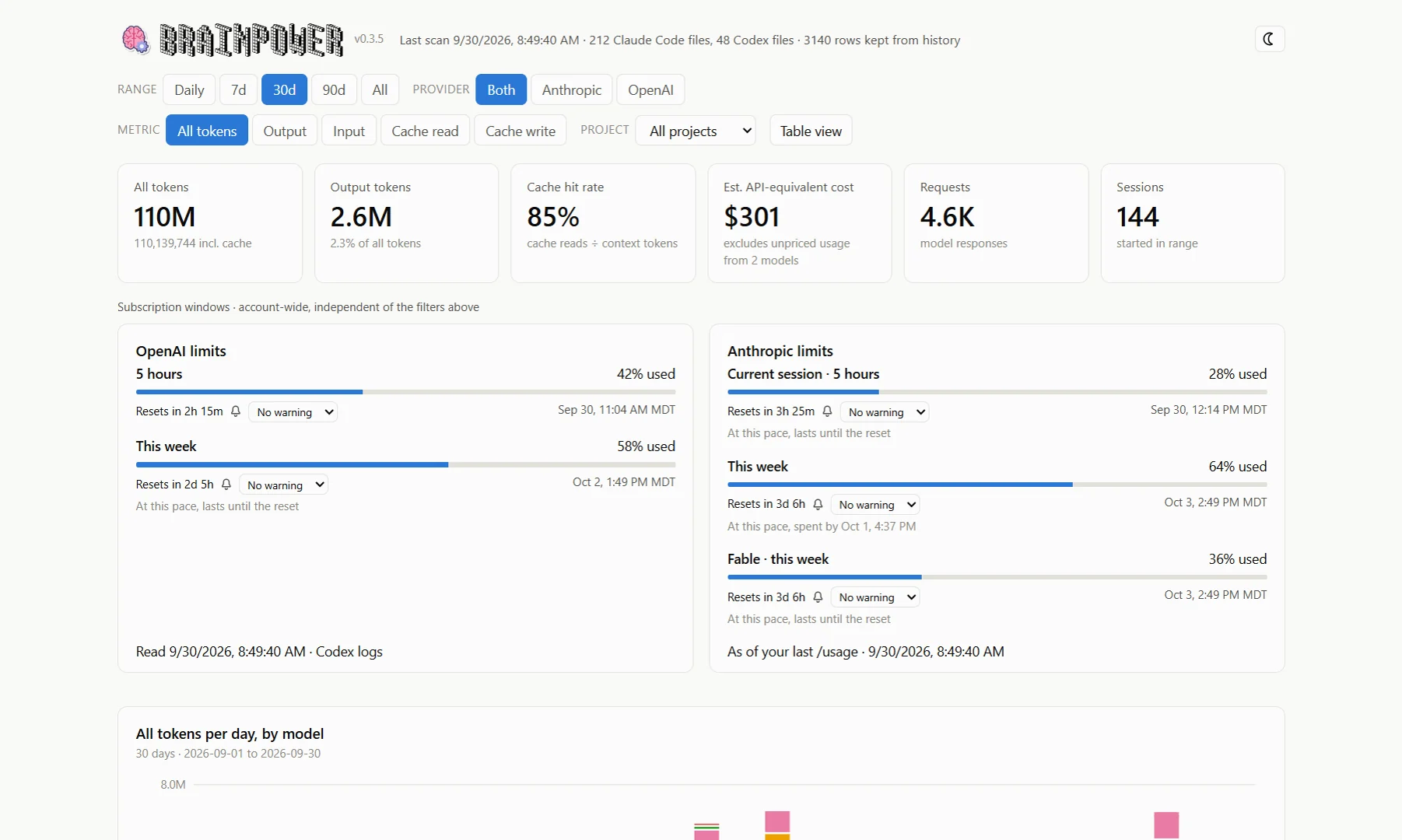
The filter row
- Range: Daily (one day, today unless you pick another), 7, 30 or 90 days, or All. Sessions count in the range they started in. Under 7d a Bars switch changes between one column per day, each filling its whole day, and one per hour across the week with a hairline at each midnight.
- Provider: Both, Anthropic (Claude Code) or OpenAI (Codex).
- Metric: which token class the charts show. All tokens is the sum of the four classes; Input is uncached input, Cache read and Cache write are the cached portions the vendors bill separately, Output includes the model's reasoning. Both providers are normalised to the same four classes so their numbers compare.
- Project: one project or all. A project is the folder Claude Code or Codex was started in.
- Table view replaces the daily chart with the same numbers as a table.
- Refresh scans the logs again.
The KPI row
Six tiles for the selected range, provider and project: all tokens, output tokens, the cache hit rate (cache reads as a share of everything sent to the model: uncached input, cache reads and cache writes), the estimated cost, requests and sessions. The cost is what the same usage would cost at the vendors' API list prices, using the rates under Settings → Pricing; it is a comparison figure, not your bill. Usage of a model with no rate is left out of the estimate, and a table total that had to leave something out is marked with an asterisk.
The charts
- Per day, by model: one column per day, stacked by model. A model keeps the same colour everywhere in the app, and you can change it under Settings → Pricing.
- By model: a bar per model and a composition table with input, cache write, cache read, output, the cache hit rate and cost.
- By hour of day: the selected metric grouped by clock hour across the range, to show when in the day you use the tools.
- By project: the same metric per project.
- Largest sessions: the thirty biggest sessions started in the range, with their models, start time and duration.
Hover any bar for its exact numbers. Every chart that shows more than one series has a legend.
Any day, hour by hour
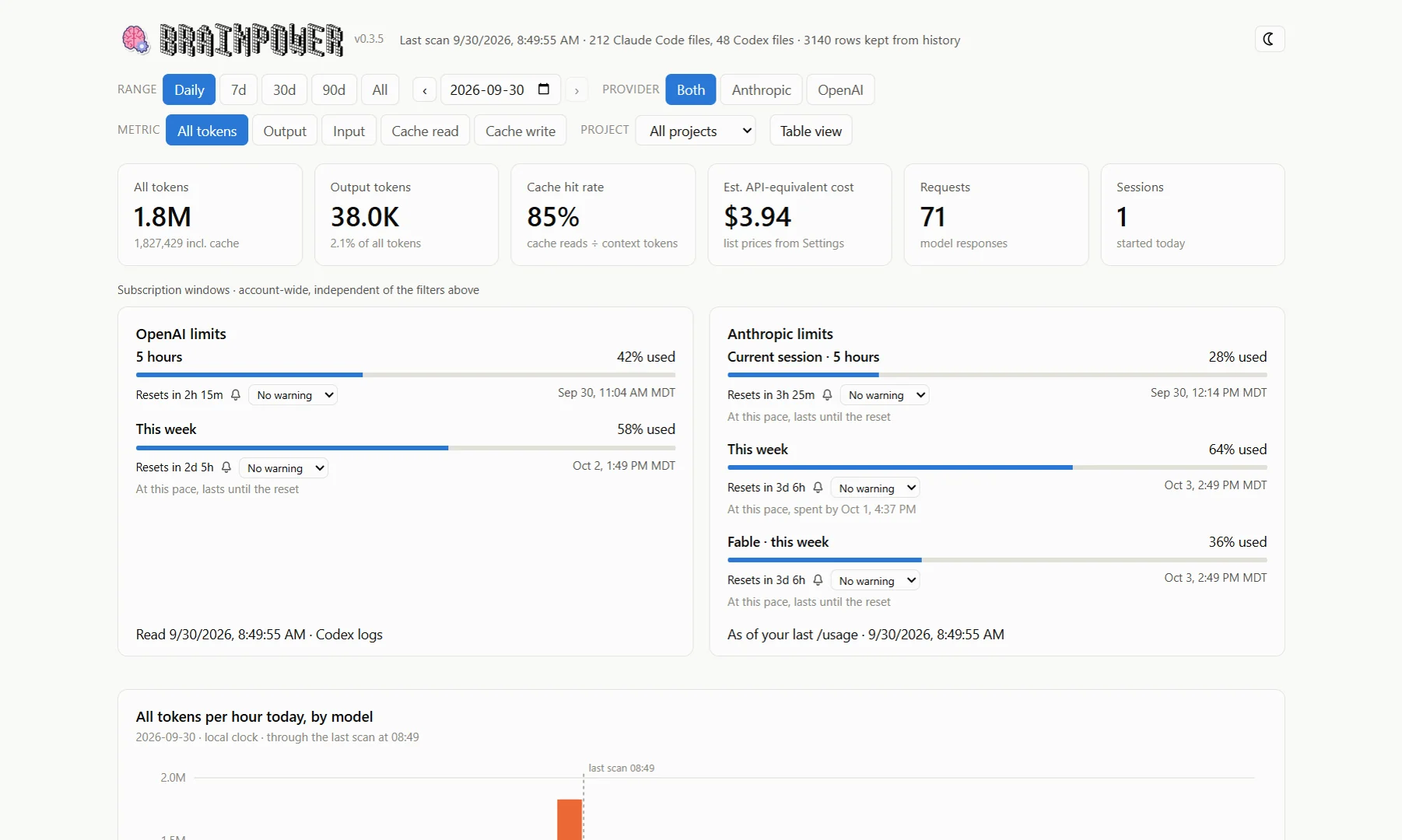
Choosing Daily in the Range control scopes every view to one day: today, until you pick another with the arrows or the date field that appear beside the range. The daily chart becomes one column per clock hour, stacked by model, with a marker at the time of the last scan while the day is today: press Refresh to bring the bars up to the minute. In place of the hour-of-day chart, Running total draws the day's cumulative usage against a typical day, the average of the seven days with usage before it, under the same filters, and the caption says how far ahead of or behind that curve the day is. Press Daily again to return to today.
The Limits cards
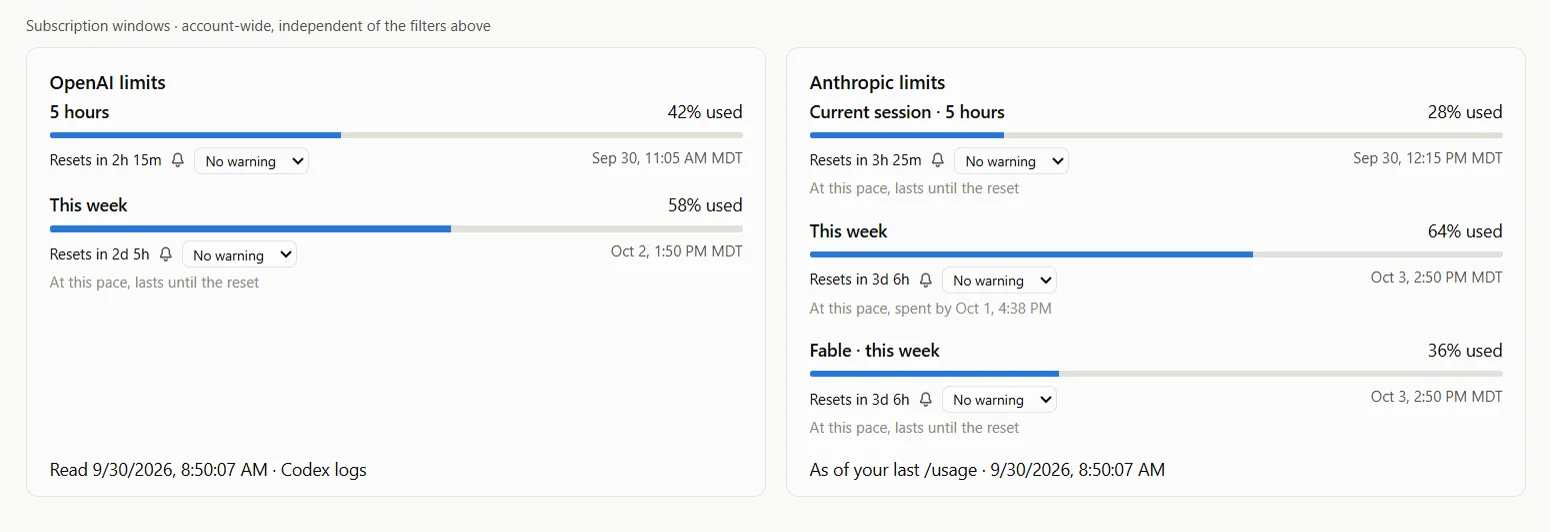
Under the KPI row, one card per provider shows how much of each subscription usage window has been used and when it resets, as a countdown and as a local time. These describe your account, not a pile of tokens, so they ignore the range, provider and project filters.
- OpenAI: Codex's 5-hour window and its weekly window. Codex writes the readings into its own logs, so the card is as fresh as your last Codex request, and the note under it says when that was; a reading older than fifteen minutes is flagged. When Codex refuses a request because a window is spent, the card shows that window at 100% from the moment of the refusal on, matched to the reset time Codex named in its message, because Codex records the refusal but no new percentage.
- Anthropic: Claude Code's current session, this week, and any per-model week your plan has (a weekly limit for one model shows as its own row, "Fable · this week" for instance). Claude Code saves these readings only when you open
/usageinside it, so the note says "as of your last /usage"; once that is over an hour old, it tells you to run/usageand Refresh. Settings → Subscription limits can instead ask Anthropic on every scan, using Claude Code's own sign-in (see Settings).
Under each window, At this pace estimates when it would be spent at the recent rate, from the tokens logged inside the window, or says it lasts until the reset; the line is refreshed every thirty seconds and left out when there is nothing to go on. A window whose reset time has already passed is greyed and keeps its last reading rather than pretending it is back to zero. If a provider has no reading at all, the card says what to do: use Codex, or open /usage in Claude Code, then Refresh.
Alarms and usage warnings
Each window in the limit cards has controls beside its reset time: a bell and a warning level everywhere, and in the desktop app an Action… button as well.
- The bell sets a one-shot alarm for that reset. When the window resets, Brainpower plays the ring chosen under Settings → Notifications, the number of times chosen there, shows a Windows notification and keeps a banner up until you press Dismiss. Clicking the bell again cancels the alarm. Alarms are kept while the app runs, including in the notification area; one that came due while the app was closed still rings at the next launch if the reset was less than an hour ago.
- The level selector sets a usage warning at 50, 75, 80, 90 or 95%. When a fresh reading shows the window at or past that level, the same ring, notification and banner fire, once per period; after the reset it is armed again. A reading older than fifteen minutes never triggers it, and choosing a level the window has already passed waits for the next period, which the selector's tooltip says. While a warning is set, the desktop app keeps scanning every five minutes, in the tray too, so it can notice.
- Action… opens the alarm action editor, described next.
The ring, its volume and how many times it repeats are chosen under Settings → Notifications. The banner and the ring do not depend on Windows showing the notification.
Alarm actions
An alarm action makes a reset useful: when the window resets, Brainpower opens a terminal window running Claude Code or Codex with a prompt you wrote, or a script or file of your own, in a folder you chose. Actions are desktop-only; the portal shows the same limit cards without the Action button.
Setting one up
- Press Action… beside a window and tick Run a task when this alarm fires.
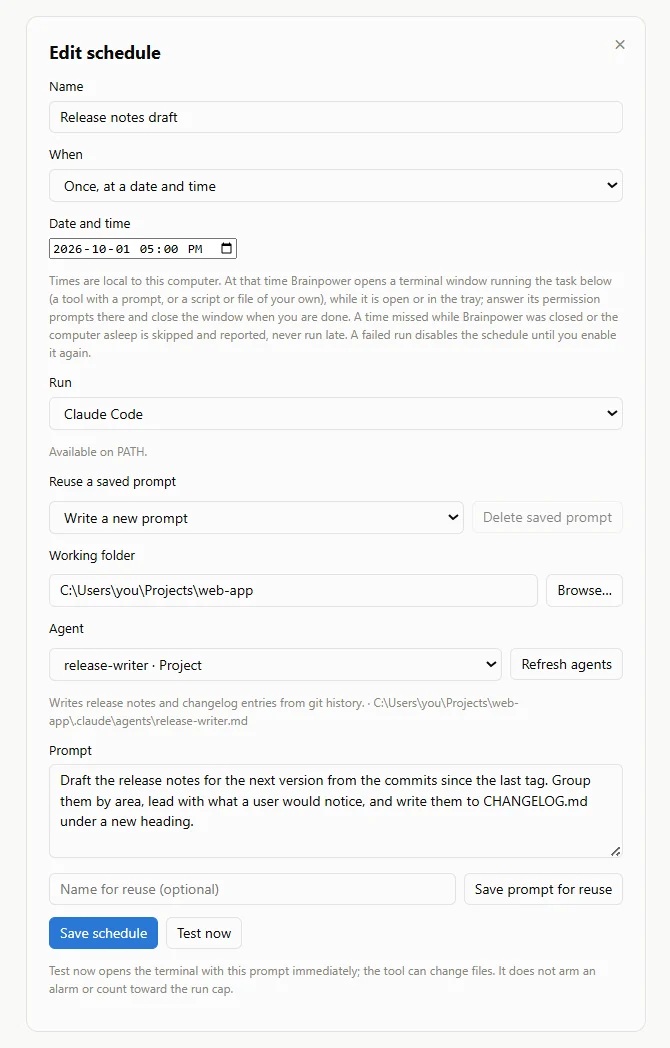
- Choose what to run under Run: Claude Code or Codex with a prompt, or A script or file of your own (see below). A tool has to be installed, signed in and on your PATH; the line under the selector says whether it was found. After installing a tool or changing PATH, restart Brainpower. For an Anthropic window, the editor also warns when Claude Code's sign-in expires before that reset, and says what follows: no live reading until Claude Code renews it, or a session that renews the sign-in first and may ask you to sign in again. Arming is never refused.
- Choose the working folder the tool should start in, and optionally an Agent. Brainpower lists the custom agents defined for that tool, personal ones and those in the folder's project, with their descriptions; Refresh agents reloads the list. Claude Code is started with the chosen agent; Codex has no such flag, so it is asked in the prompt to delegate to that agent.
- Write the prompt. It becomes the first message of the session. Save prompt for reuse keeps a named copy of the tool, folder, agent and prompt that the Reuse a saved prompt selector offers next time; saving alone never arms anything.
- Decide whether it repeats. Re-arm for each new reset runs the action again at every following reset, up to a maximum number of runs (1 to 1,000, counting the first) or until you disable it.
- Test now opens the terminal with the current values straight away, without saving or arming; it is a real session that can change files and use your quota. Save alarm action arms it.
A script or file of your own
Choosing A script or file swaps the prompt and agent for a File (Browse… offers existing files only; an empty working folder defaults to the file's own), Run it with and optional Arguments. By file type picks the way to run it from the extension and the line under it says which: .ps1 under PowerShell (pwsh if installed, otherwise Windows PowerShell, with -NoProfile -ExecutionPolicy Bypass -File, the way Task Scheduler runs scripts; a policy your organisation enforces still applies), .cmd and .bat under cmd.exe, .py under Python, .js under Node.js, .exe directly, and any other file with the app registered for its type, waiting until that app closes. Choose an explicit interpreter to override the extension. Interpreters are looked up on PATH when Brainpower starts; restart it after installing one.
The file runs as you, with your permissions, and what it does is your own responsibility: Brainpower starts it in the same terminal window as a tool run, adds no flags beyond what starting the file needs, and records only how it ended, so an exit code of 0 counts as finished and any other as failed, with the window staying open until you press Enter. Arguments are split like a Windows command line, so quote one that contains spaces; a batch file gets the line exactly as typed. Reset alarms, schedules, Test now, the banner, the run history and the notifications treat a file run exactly like a tool run, naming the file instead of the tool. Saved prompts are for tools only.
What happens at the reset
A terminal window opens with the tool running your prompt, and from there it is an ordinary session: permission prompts, follow-up questions and everything else happen in that window, not in Brainpower. When you are done, end the session or simply close the window; a closed window counts as the session's normal end. Brainpower starts the tool with no permission-bypass or sandbox flags, so the tool's own settings apply.
A banner in Brainpower reports Started, Finished or Failed for each run, with Open log and, while it runs, Stop task, which closes the terminal session and disables the action's re-arming. A run that finishes, fails or whose window is closed also shows a Windows notification naming the tool or file, the folder and the outcome, unless you switch that off under Settings → Notifications; a run you stop yourself never does. The banner's Dismiss hides the listed runs and keeps their records; a run comes back only if its status changes. Settings → Alarm actions lists the configured actions with Edit, Disable and Stop task, and the recent runs; Clear run history there deletes the records and log files of runs that are not still running.
Actions run while Brainpower is open, including in the tray. A reset missed while it was closed, the computer was asleep, or the app was stalled for more than fifteen seconds never starts work later; it is reported instead, and the action is disabled. A failed run also disables it. A re-arming action waits for a newly observed future reset rather than calculating one: Brainpower scans again after five seconds and then every minute until it sees one, following your live-limits and cloud-sync settings, so for Claude Code either open /usage or switch on the live request under Settings. Two actions cannot run in the same folder at once. Quitting Brainpower leaves an open terminal session alone; its outcome is recorded at the next launch if the session has ended by then.
Schedules
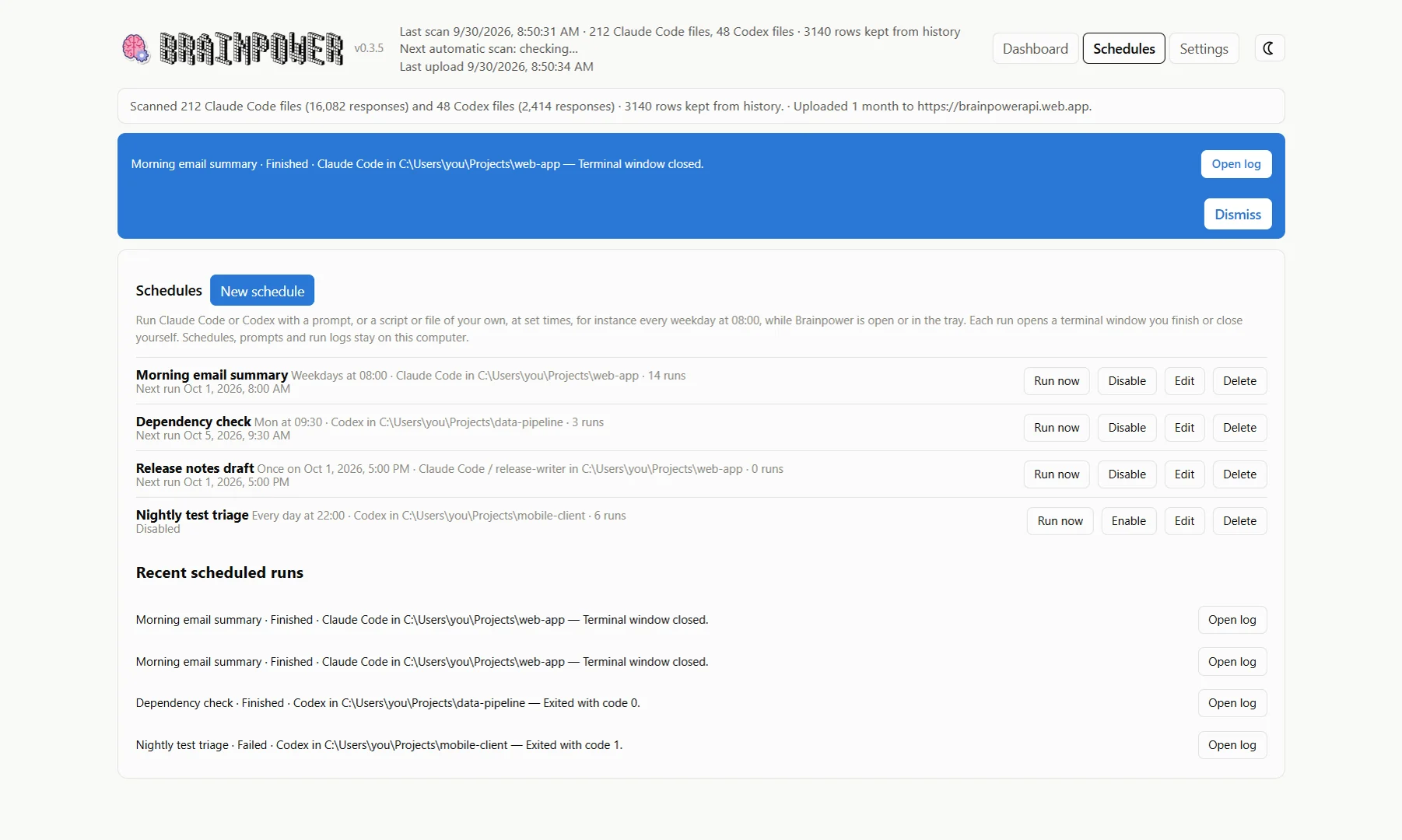
The Schedules tab runs the same kind of task at set times instead of at a reset: every weekday at 08:00 to summarise the night's email, say, or once, tomorrow at five, to draft release notes. New schedule opens the editor from the previous section with a name and a time on top: either chosen days of the week at a time of day, or once at a date and time, always in this computer's local time. The Run selector, folder, agent, prompt, file and saved-prompt controls are the same, as is Test now.
Each run opens a terminal window exactly like an alarm action, counts in the run history and the banner, and the schedule then waits for its next time; a one-off is finished after it runs. The list shows every schedule with its timing, tool, folder, how many times it has run and when it runs next, with Run now, Disable or Enable, Edit and Delete. Stop task on a running schedule also disables it. Below the list are the recent scheduled runs with their logs.
A time missed while Brainpower was closed or the computer asleep is skipped and reported in the banner, never run late; a repeating schedule simply keeps its next time. A failed run disables the schedule until you enable it again, because it would fail again. If a session is still open when the next time comes round, that time is skipped. Quitting Brainpower during a run leaves the terminal alone, and the schedule is armed for its next time at the next launch.
The Settings tab
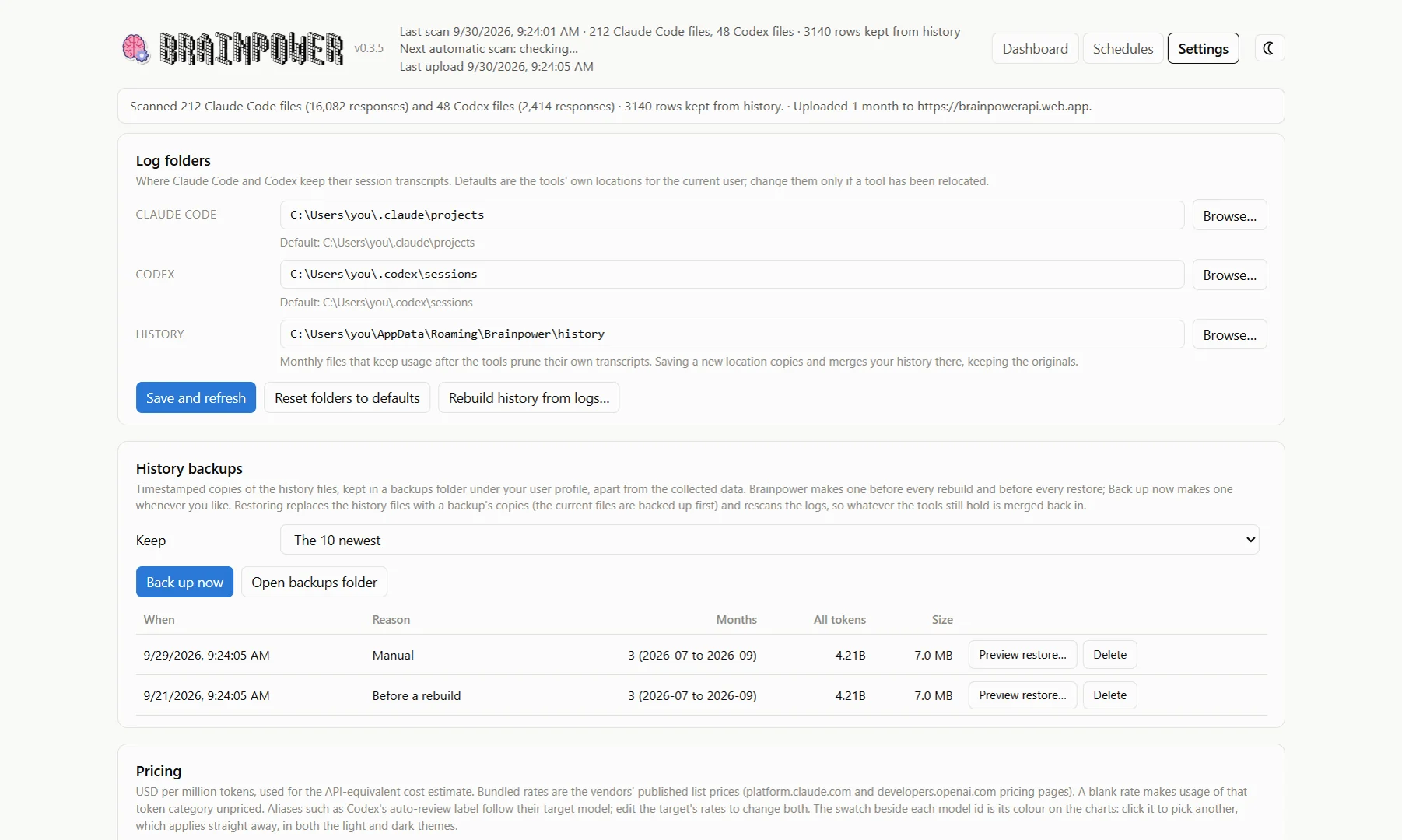
- Log folders: where Claude Code and Codex keep their transcripts, and where Brainpower keeps its monthly History. The defaults are the tools' own locations; change them only if a tool has been relocated. Saving a new history location copies and merges your history there and keeps the originals, so a synced folder works as a backup. Rebuild history from logs backs the history up, then throws it away and rebuilds it from the current logs, losing anything the tools have already pruned.
- History backups: timestamped copies of the history files in a backups folder under your profile, apart from the collected data. One is made before every rebuild and before every restore, and Back up now makes one at any time; Keep says how many to keep. Preview restore shows every month on either side with its tokens and rows and whether restoring would leave it unchanged, replace it, add it or remove it; Restore this backup saves the current files first, replaces them with the backup's copies and rescans the logs, so whatever the tools still hold is merged back in.
- Pricing: the display name and USD per million tokens for every model seen, per token class, used for the cost estimate. The bundled rates are the vendors' published list prices; edit any of them, leave a rate blank to make that usage unpriced, and Reset pricing to bundled defaults to go back. Check online for changes compares your rates with a community-maintained price list and shows the differences; nothing changes until you apply them. The swatch beside each model id is its colour on every chart: click it to pick another, which applies straight away in both themes.
- Startup and updates: start Brainpower when you sign in to Windows, optionally minimized to the notification area. This is a per-user startup entry, no admin rights involved. Offered by the installed and portable builds. The same card can check this portal for a newer release when Brainpower starts and show "Brainpower x.y.z is available" in the header, and, in the installed builds, download the installer, verify it against the release's SHA-256 and install it with one click or when you quit. Both options are off by default; Check now works either way.
- Automatic scans: scan every 5, 10, 15, 30 or 60 minutes, in the tray too, so the Daily view and the Limits cards stay current without pressing Refresh. Each scan behaves like Refresh, including the live Anthropic request and the cloud upload when those are on. The card says when the next scan is due.
- Subscription limits: Ask Anthropic for Claude Code's windows on every scan is off by default. When on, each scan makes the request Claude Code's own
/usagemakes, using the access token Claude Code keeps on this computer, so the Anthropic card is as fresh as the scan. The token goes to api.anthropic.com only, at most once a minute, and Brainpower never stores, uploads or renews it; once it has expired, the card falls back to your last/usageuntil Claude Code next runs. The card reports whether a sign-in was found, when it expires, and how the last request went. - Cloud sync: linking this computer to your Brainpower account, described in the next section.
- Notifications: which of the three rings alarms and warnings play, with Play to hear it, a volume slider, and how many times it repeats: once to ten times, or until you dismiss the banner. Show a Windows notification when an alarm action or schedule finishes or fails is on by default, since a task ending while the app sits in the tray is the case it exists for.
- Data locations: the settings file, the data folder, the history folder and the backups folder, each with an Open folder button.
- Alarm actions: the configured reset actions and the recent runs, with Clear run history.
Cloud sync and the portal
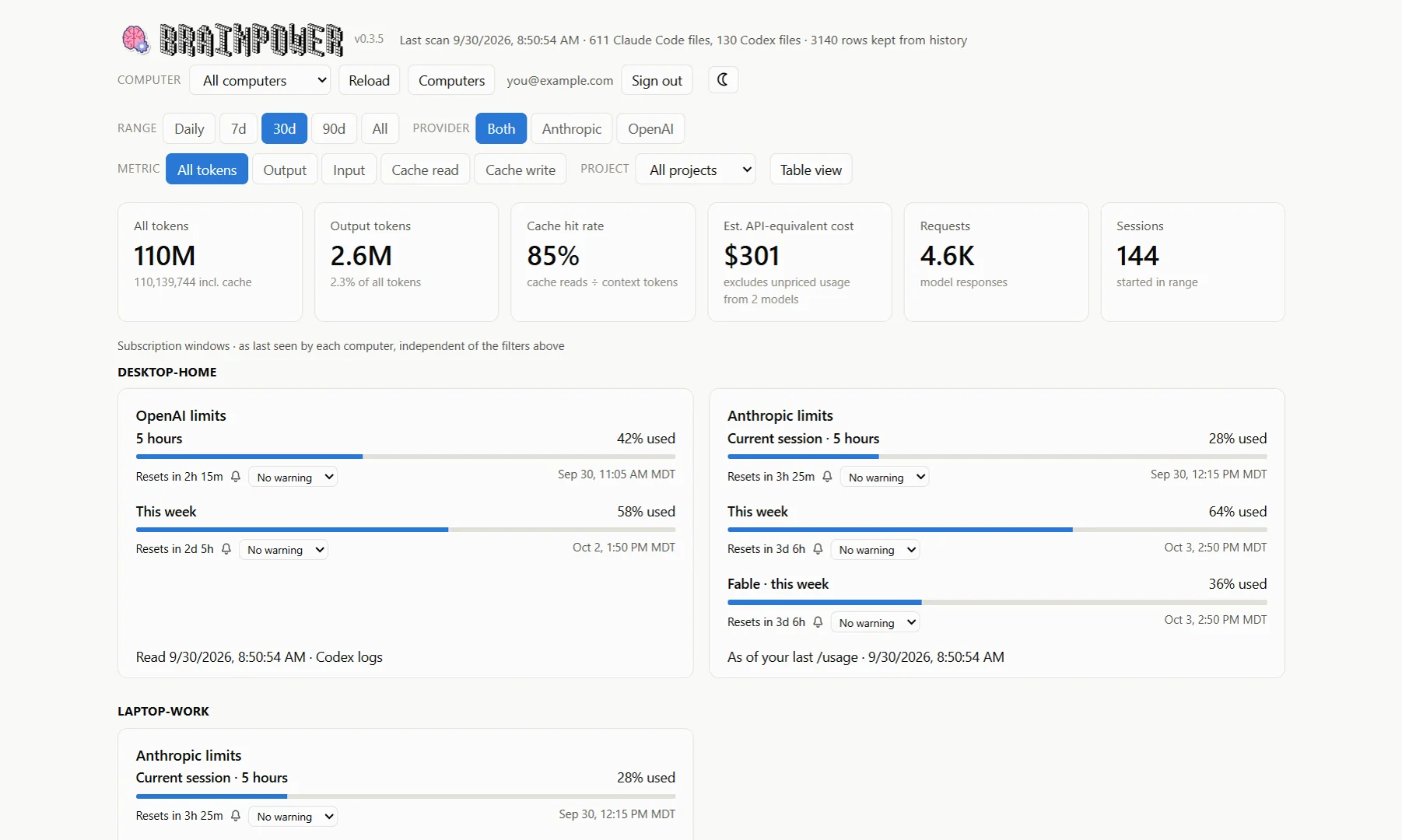
Cloud sync keeps a copy of each computer's monthly history under your Google account, so that your dashboard on this site shows the total across your computers. It is off until you link a computer.
Linking a computer
- Open Settings → Cloud sync and press Link this computer. Your browser opens the portal's link page, which shows the computer's name.
- Sign in with Google and press Link. The browser hands a one-time code back to the app, which exchanges it for a credential kept on this computer. If the hand-off fails (over a remote desktop session, for instance), the page shows the code and you can paste it into the box beside the button. When the app cannot reach the portal at all, the message says which kind of failure it met (a certificate, DNS, being offline, a refused or reset connection, no answer within thirty seconds, or a proxy) with the raw code in brackets; a certificate failure names the issuer when a web filter on your network is intercepting the connection, which is something for your IT department rather than for Brainpower.
- Leave Upload after every scan on, and the months that changed go up after each launch and Refresh. Upload now sends changed months and settings straight away; Re-upload everything sends every month again.
- Leave Show my other computers here on, and after each scan the app reads back what the portal shows for your account. Once a second computer is linked, a Computer selector appears at the head of the dashboard's filter row: this computer's own logs, every linked computer summed, or one of the others. The limit cards list each computer that shares its windows under its name, with the bell and the warning level; alarm actions and the exhaustion forecast stay with this computer, because they need its own logs. Refresh fetches the account afresh; automatic scans reuse an answer younger than five minutes. The copy is kept in the data folder and removed when you unlink or switch the option off.
What goes up is history-shaped: token and request counts by day, hour, model and project, session summaries (ids, start and end times, models), file and request counts, the computer's name and app version, and your pricing and colour settings so the portal prices and colours usage like the app. Transcripts, prompts and the log folder paths stay on the computer. Share subscription limits with my Brainpower account is off by default; on, it adds this computer's limit windows (the percentage used, the window length and the reset time, nothing about the account behind them) to its uploads, and switching it off clears the shared copy. Linking the same computer again reuses its entry, so history is never duplicated.
Unlink this computer stops uploads and discards the credential; the uploaded history stays in the account until you remove the computer on the portal. Delete this computer's history from the cloud removes every month this computer uploaded while keeping it linked. It cannot be undone, so the app asks first, and it switches Upload after every scan off so the history is not sent up again until you turn it back on or press Upload now. The files on the computer are untouched.
The portal
Sign in with the same Google account and the dashboard shows the sum over every linked computer, with the same filters, charts and tables as the app. The Computer selector narrows it to one. Computers lists them with their last upload and the months held, lets you rename one, and Remove deletes its uploaded history from your account; the files on that computer are untouched. Reload fetches the latest uploads; the page keeps what it has fetched for the browser session otherwise.
The limit cards are the exception to summing: they describe an account rather than a token total, so the portal lists the last reading from each computer that shares one, under that computer's name. The bell and the warning level work on the portal as well, using the browser's notifications when you allow them; alarm actions and schedules exist only in the desktop app.
Where your data lives
Everything the app keeps is under your Windows profile, in %APPDATA%\Brainpower: the settings file, the generated dashboard data, the monthly history (unless you moved it in Settings), the alarm actions, schedules and saved prompts, and one log per action run. Settings → Data locations opens those folders. The history is the only copy of usage the tools have since pruned, so back it up, or point Settings → History at a folder your backup or sync service already covers.
Nothing leaves the computer unless you ask for it: cloud sync once you link, the optional price-list check when you press it, and the optional live request to Anthropic when you switch it on. The privacy notes on the front page summarise the same in three lines.